> For the complete documentation index, see [llms.txt](https://help.claritylims.illumina.com/llms.txt). Markdown versions of documentation pages are available by appending `.md` to page URLs; this page is available as [Markdown](https://help.claritylims.illumina.com/instruments-and-integrations/irm/irm-user-interaction.md).
# User Interaction
{% hint style="info" %}
To perform the following actions, Clarity LIMS admin permission is required.
{% endhint %}
## Connect to Instrument
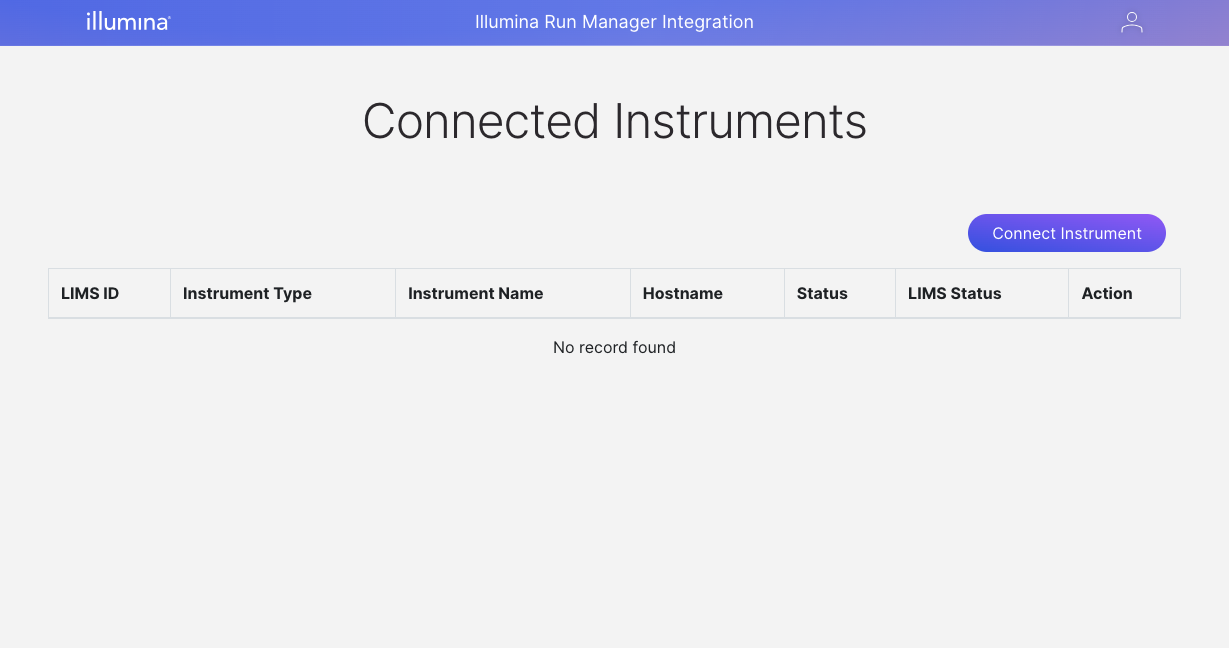
1. Navigate to Illumina Run Manager Integration UI via the following url, `https://{Clarity LIMS server url}/irm`
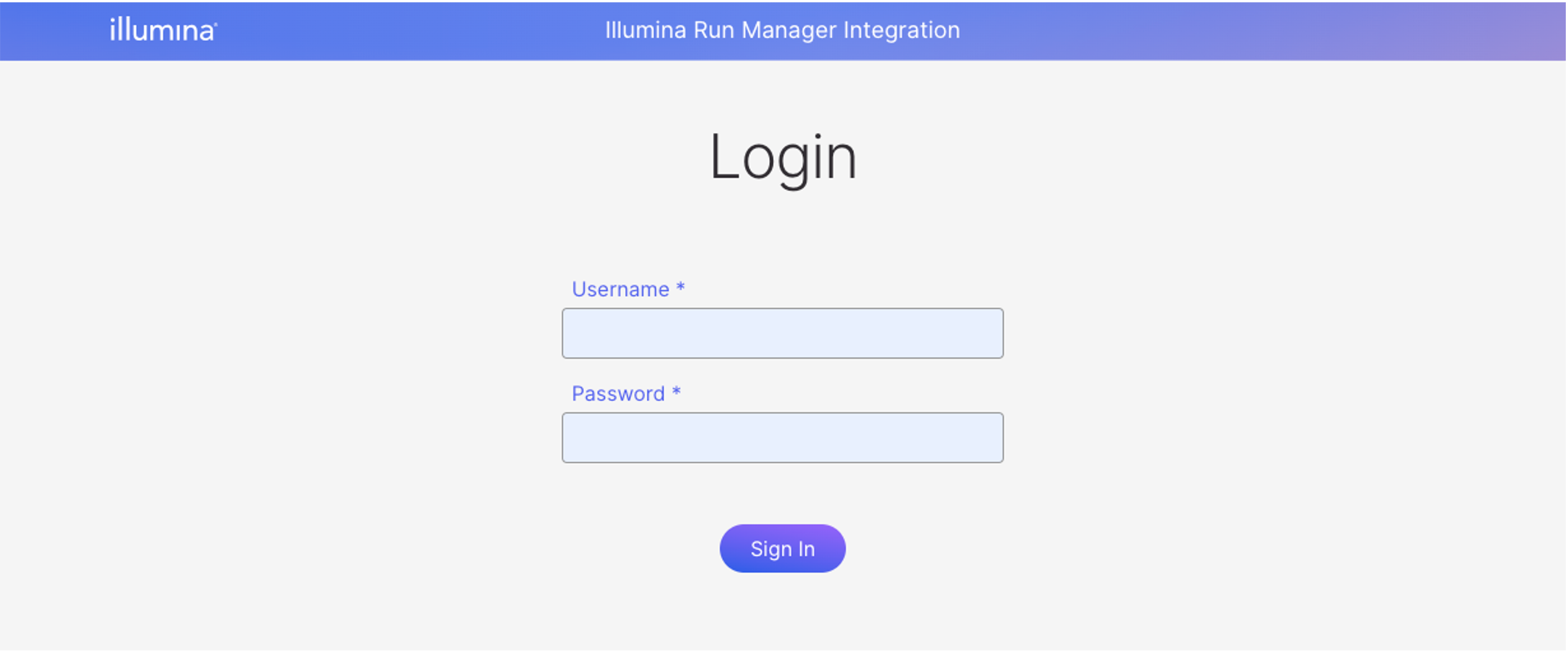
2. Login with Clarity LIMS admin credentials.
3. Click "Connect Instrument" button.
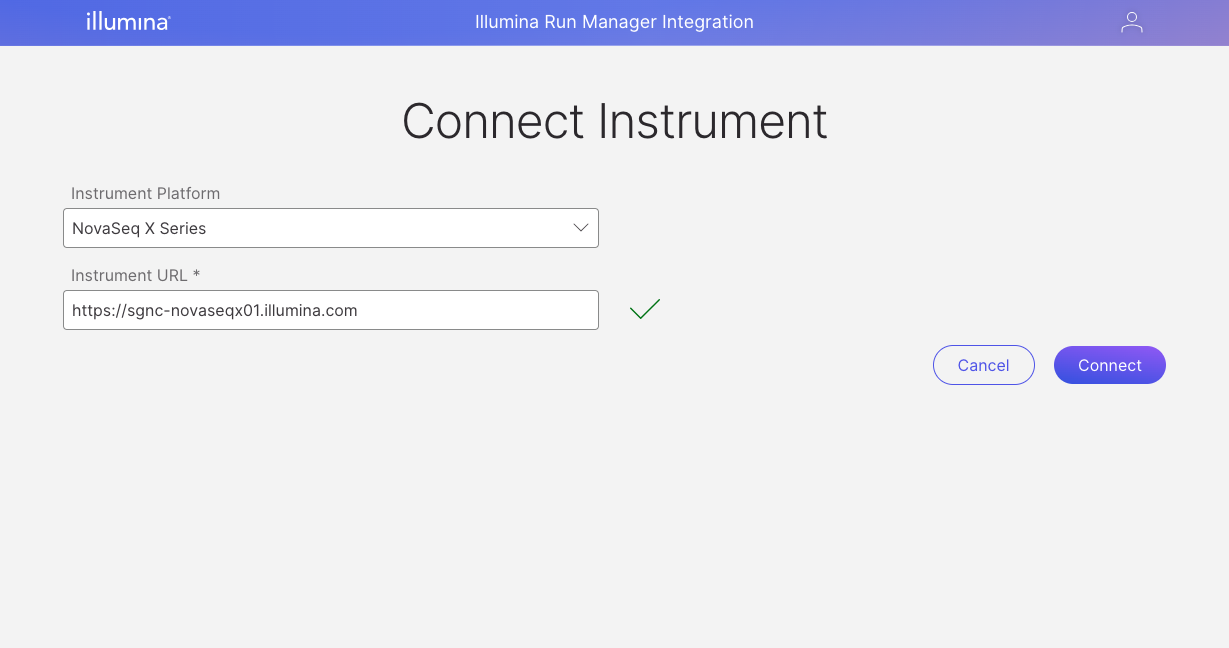
4. On the "Connect a new instance page", select the appropriate Instrument Platform and enter the Illumina Run Manager instance URL, then click the "Connect" button.
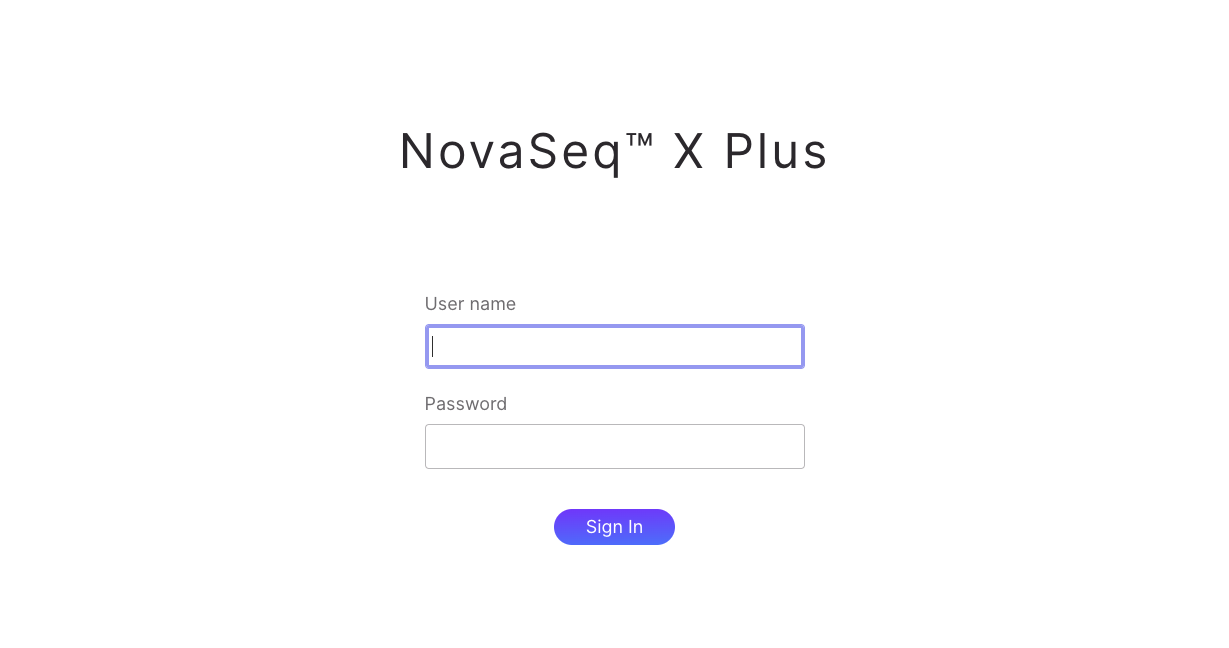
5. Enter Illumina Run Manager credential admin and click Sign In. Screenshot below shows NovaSeq X instrument as an example.
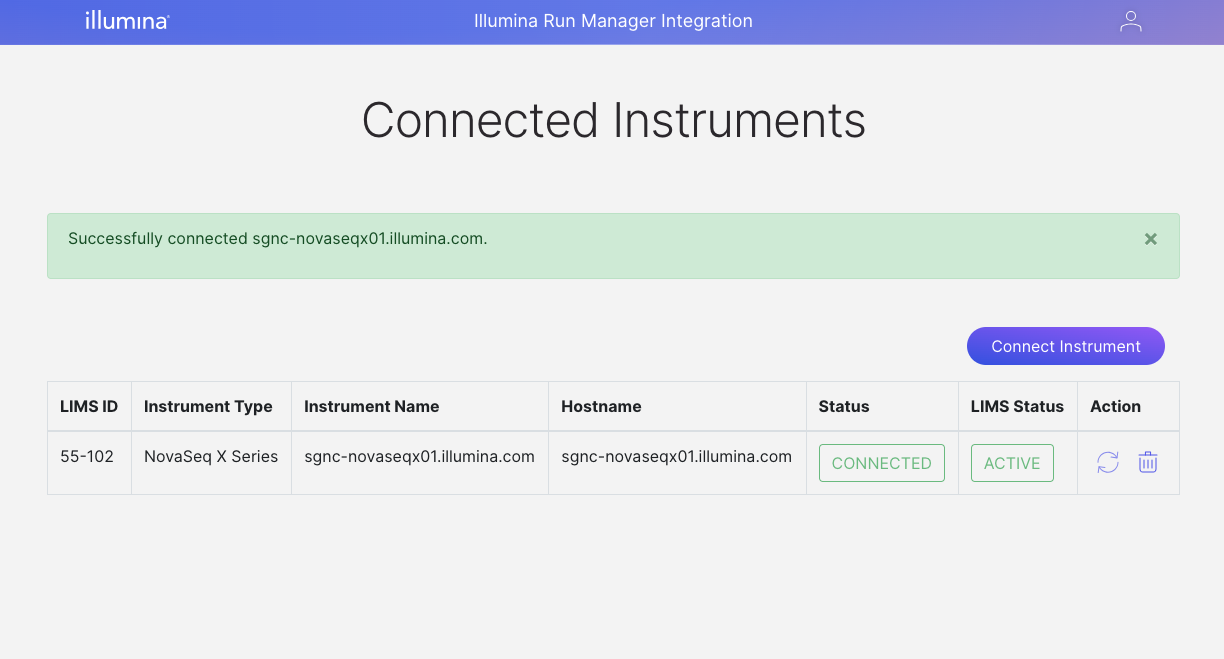
6. Upon successful connection, the Illumina Run Manager instance details will populate under the Connected Instances table.
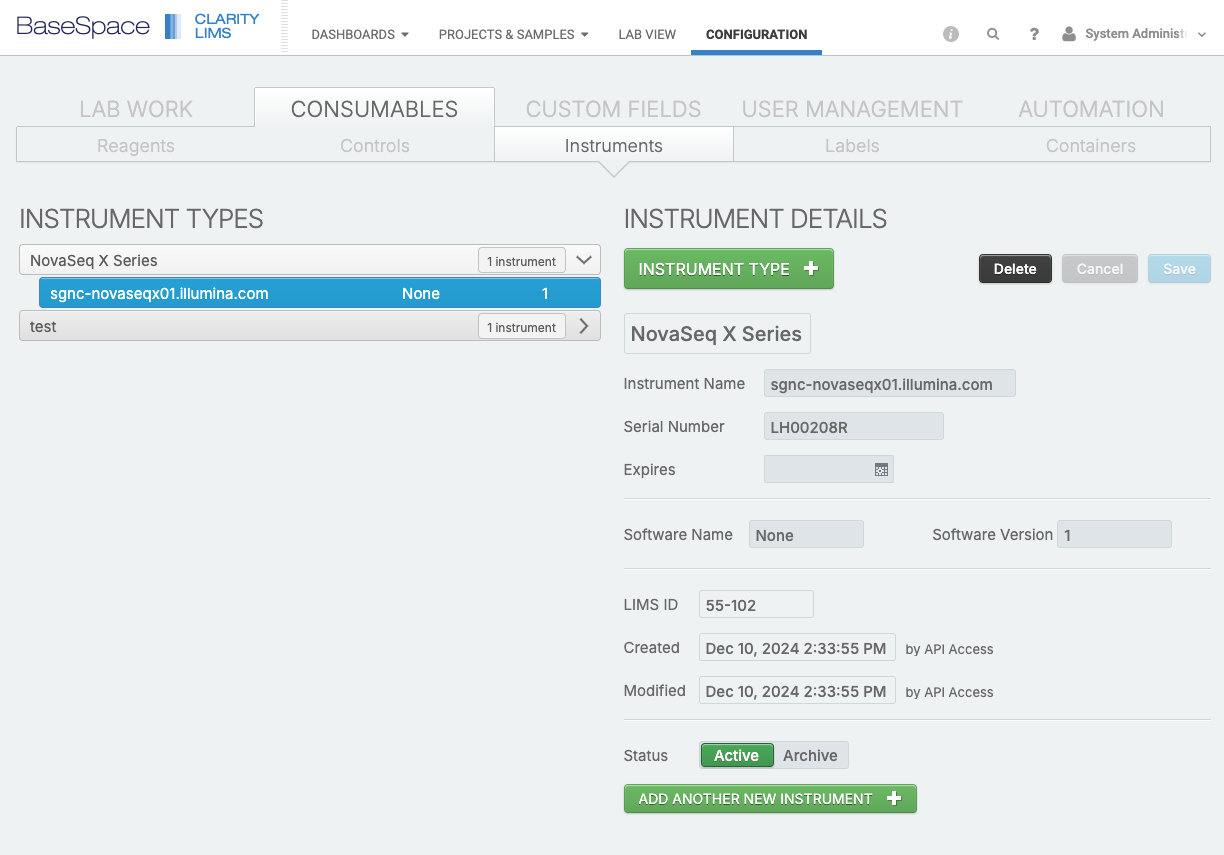
7. On Clarity LIMS UI, the registered instrument can be found under Configuration > Consumables > Instruments.
## Disconnect from Instrument
Follow the steps below to disconnect an instrument:
1. Navigate to Illumina Run Manager Integration UI via the following url, `https://{Clarity LIMS server url}/irm`.
2. Login with Clarity LIMS admin credentials.
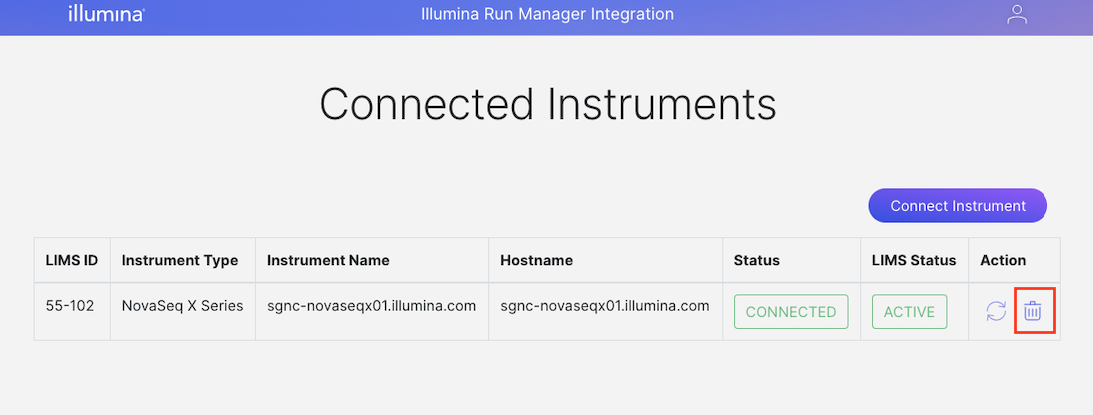
3. Click on the delete button (trash bin icon under the "Action" column) of the Instrument Instance to be disconnected.
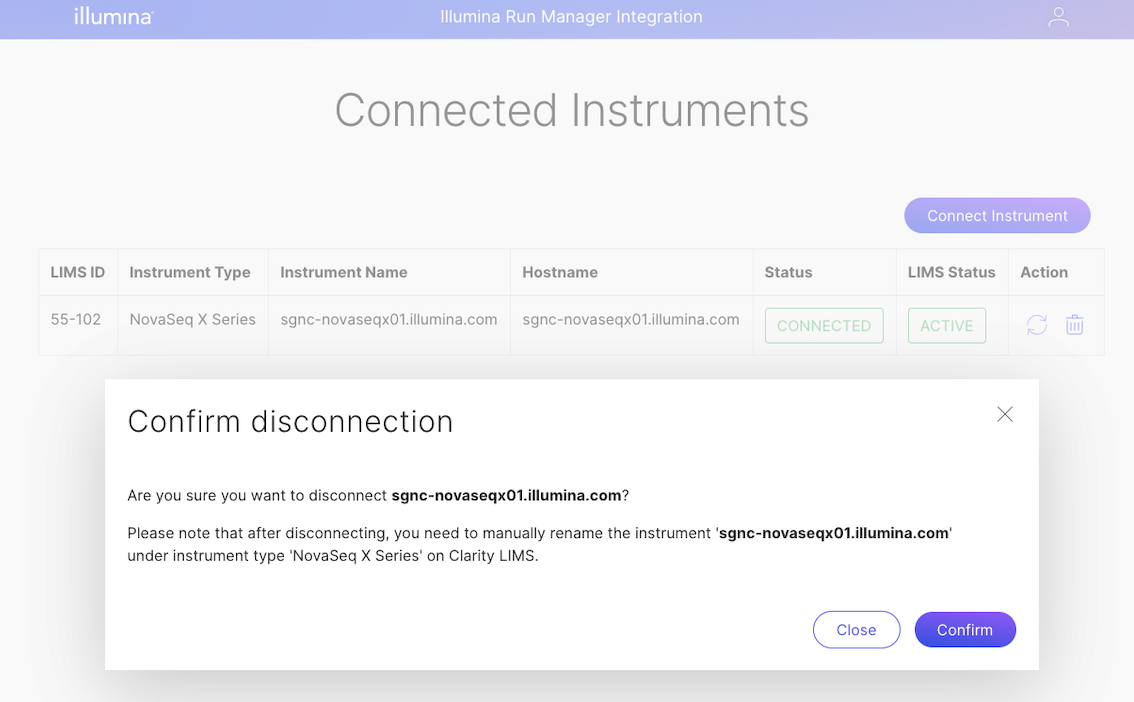
4. Click on the "Confirm" button.
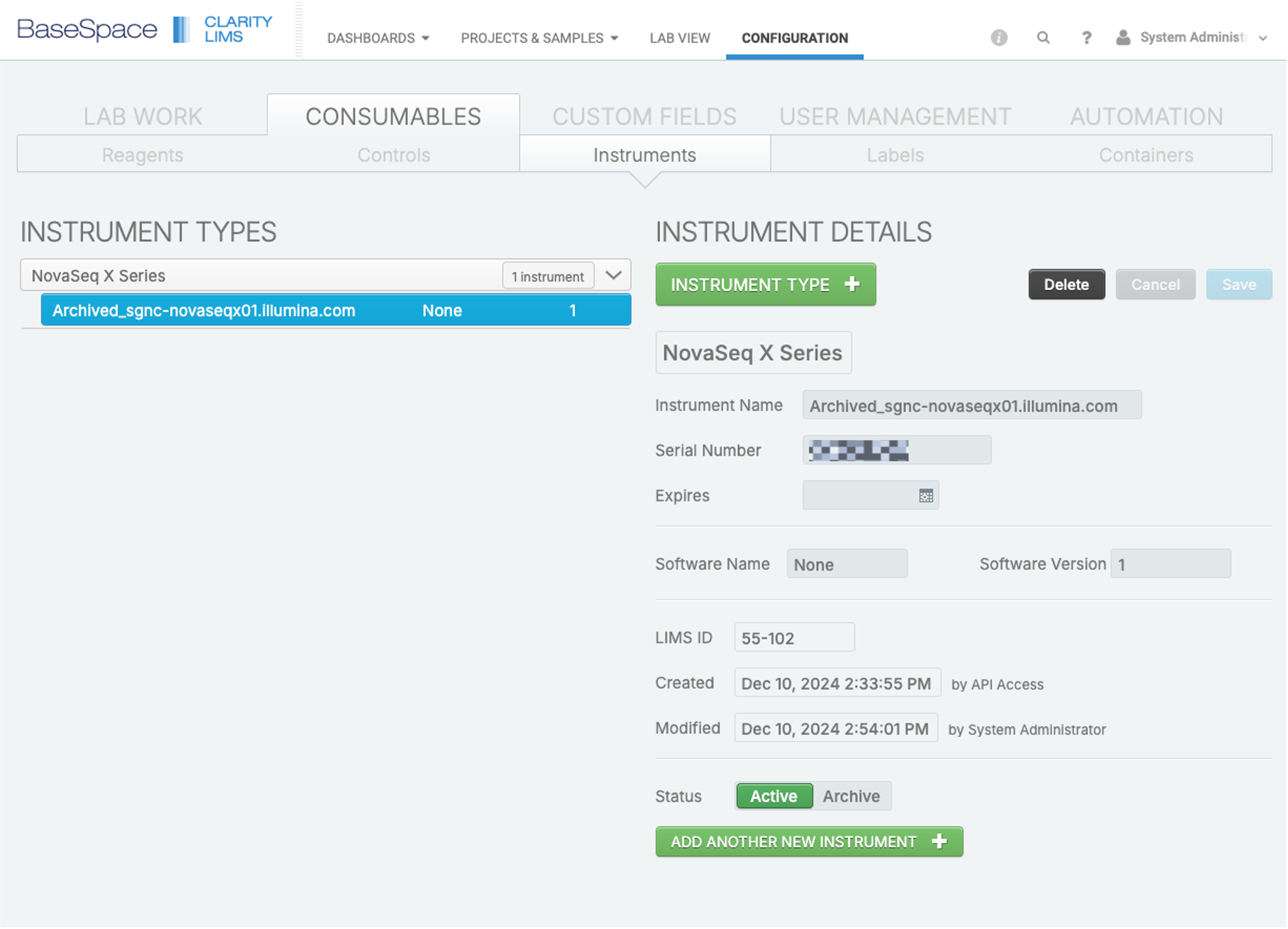
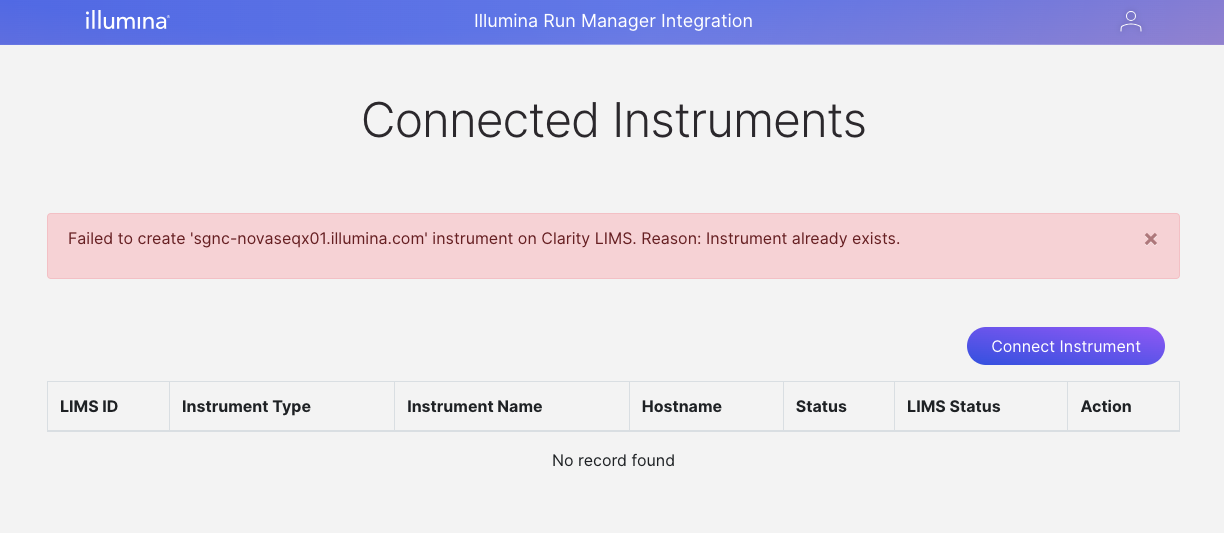
5. On Clarity LIMS UI, manually rename the instrument (e.g. by appending prefix of "Archived\_").
> ⚠ The system will throw an error when the user tries to connect to the same instrument again without renaming the instrument.
>
>
>
>
6. \[Optional] Archive the disconnected instrument to avoid confusion of instruments.
Steps for instrument archival can be found in Instrument Status under Add and Configure Instruments of Clarity LIMS Reference Guide > Configuration > Consumables > Instruments in [Clarity LIMS (Clarity & LabLink Reference Guide) documentation](/clarity-lims/clarity-and-lablink.md).
## Reconnect Instrument
{% hint style="info" %}
Reconnecting an instrument is required under some circumstances (e.g., change of instrument domain name, reinstallation of Illumina Run Manager, factory reset of instrument etc.)
{% endhint %}
Follow the steps below to reconnect the instrument:
1. Navigate to Illumina Run Manager Integration UI via the following url, `https://{Clarity LIMS server url}/irm`.
2. Login with Clarity LIMS admin credentials.
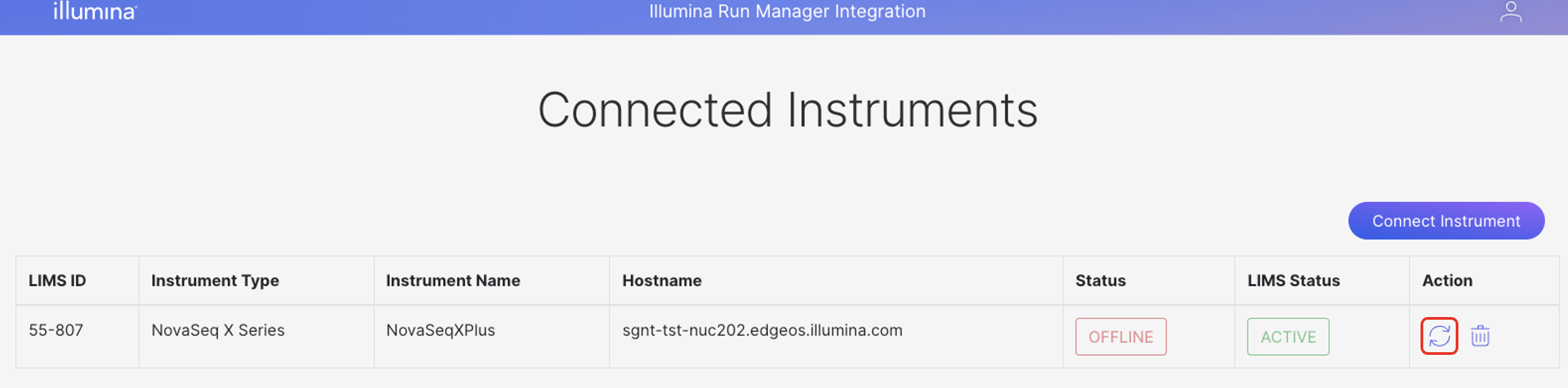
3. Click on reconnect button.
{% hint style="info" %}
The reconnect button is only clickable when the instrument status is not connected.
{% endhint %}
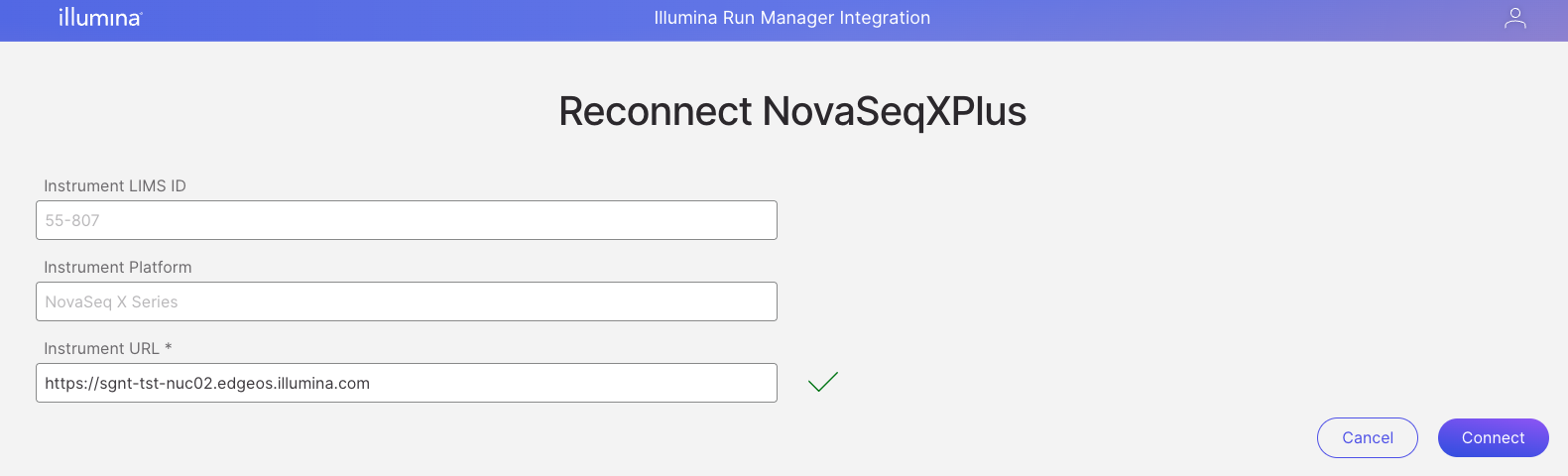
4. On the "Reconnect instance page", enter the Illumina Run Manager instance URL, then click the "Connect" button.
5. Complete the reconnection process by following steps 5 to 7 in the Connect Instrument section.
## Advance TLS Verification Setting
{% hint style="info" %}
This is applicable to Illumina Run Manager Integration v1.1.0 and onwards. For versions before that, please refer to the version's installation guide.
{% endhint %}
{% hint style="info" %}
By default, TLS Verification will be enabled.
{% endhint %}
When connecting to instrument through Illumina Run Manager Integration, TLS Verification can be enabled or disabled. This will enable or disable TLS Verification when events from Illumina Run Manager is sent to Clarity LIMS.
{% hint style="warning" %}
For testing TLS connections in a development environment, you may consider disabling TLS verification to simplify debugging. However, disabling TLS verification is strongly discouraged in production environments, as it can compromise the security of network connections.
{% endhint %}
To enable or disable TLS Verification when connecting to instrument, follow these steps:
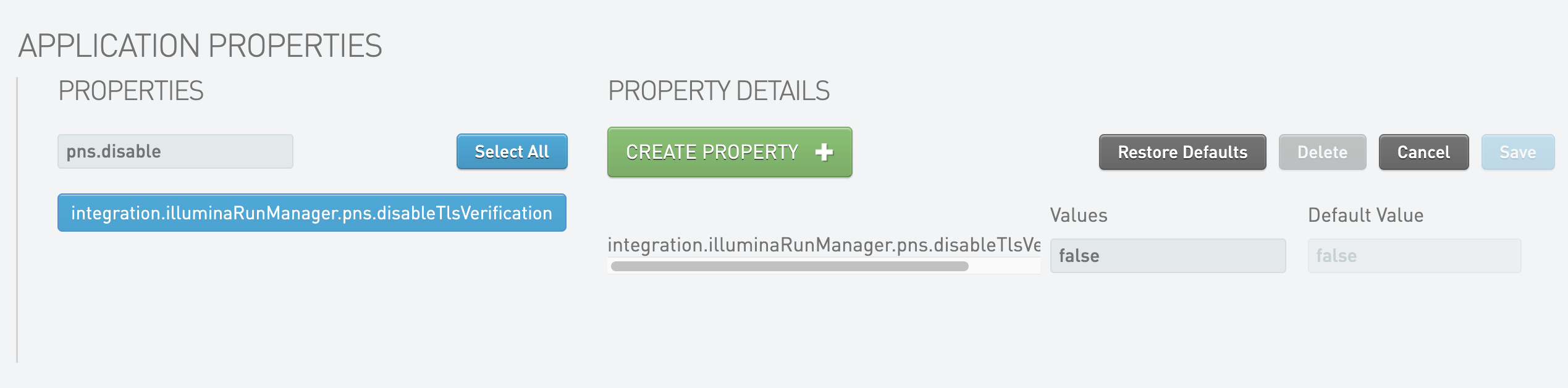
1. Navigate to System Settings on Clarity LIMS.
2. Add the property `integration.illuminaRunManager.pns.disableTlsVerification`:
* Set value to `false` to enable TLS Verification.
* Set value to `true` to disable TLS Verification.
---
# Agent Instructions
This documentation is published with GitBook. GitBook is the documentation platform designed so that both humans and AI agents can read, navigate, and reason over technical content effectively. Learn more at gitbook.com.
## Querying This Documentation
If you need additional information that is not directly available in this page, you can query the documentation dynamically by asking a question.
Perform an HTTP GET request on the current page URL with the `ask` query parameter, and the optional `goal` query parameter:
```
GET https://help.claritylims.illumina.com/instruments-and-integrations/irm/irm-user-interaction.md?ask=&goal=
```
`ask` is the immediate question: it should be specific, self-contained, and written in natural language.
`goal` is optional and describes the broader end goal you are ultimately trying to accomplish on behalf of the user. GitBook uses it to tailor the answer towards what is most useful for that goal.
The response will contain a direct answer to the question and relevant excerpts and sources from the documentation.
Use this mechanism when the answer is not explicitly present in the current page, you need clarification or additional context, or you want to retrieve related documentation sections.
 >
>
>
>