> For the complete documentation index, see [llms.txt](https://help.claritylims.illumina.com/llms.txt). Markdown versions of documentation pages are available by appending `.md` to page URLs; this page is available as [Markdown](https://help.claritylims.illumina.com/instruments-and-integrations/novaseq-x-series/novaseqx-onprem/novaseqx-onprem-v1.1.0-release-notes/novaseqx-onprem-v1.1.0-user-interaction-validation-and-troubleshooting.md).
# User Interaction, Validation and Troubleshooting
This section explains how to validate the installation of the Illumina NovaSeq X Series On-Prem Integration Package v1.1.0.
The validation process involves the following actions:
* Running samples through the Library Prep Validation v2.3.6 workflow.
* The workflow contains a single-step protocol that models the library prep required to produce libraries tagged with index sequences. At the end of the step, these libraries are routed to NovaSeq X Series Sequencing v2.0 workflow.
* Running libraries through the NovaSeq X Series Sequencing v2.0 workflow validates the following items:
* Successful sequential step advancement of samples through the steps of the workflow.
* Assign Analysis Configuration Template (NovaSeq X Series Sequencing v2.0)
* Make Bulk Pool (NovaSeq X Series Sequencing v2.0)
* Dilute and Denature (NovaSeq X Series Sequencing v2.0)
* Load to Library Tube Strip (NovaSeq X Series Sequencing v2.0)
* AUTOMATED - Sequencing Run (NovaSeq X Series Sequencing v2.0)
* AUTOMATED - Analysis Run (NovaSeq X Series Sequencing v2.0)
* Automated creation of a planned run on Illumina Run Manager (IRM).
* Automatic validation of run setup information before planned run creation.
* Automated generation of sample sheet as part of the planned run creation.
* Automated tracking of the NovaSeq X Series sequencing run and parsing of run statistics from Illumina Run Manager into the LIMS.
* Automated tracking of the NovaSeq X Series analysis run, high level analysis summary and demultiplexing result files from Illumina Run Manager into the LIMS.
The validation steps assume that the following conditions have been met:
* Integration package has been successfully installed. Refer to [NovaSeq X Series On-Prem Integration v1.1.0 Installation](/instruments-and-integrations/novaseq-x-series/novaseqx-onprem/novaseqx-onprem-v1.1.0-release-notes/novaseqx-onprem-v1.1.0-installation.md).
* The NovaSeq X instrument to be integrated is connected successfully via Illumina Run Manager UI.
* Analysis configuration templates (ACTs) are created in Illumina Run Manager.
* Index adapter kit configured in the ACT is created as label group in Clarity LIMS. For more information on creating a reagent label group, refer to Add and Configure Labels and Label Groups in the [Clarity LIMS (Clarity & LabLink Reference Guide) documentation](https://github.com/illumina-swi/clarity-int-docs/tree/main/docs/int/clarity-lims/clarity-and-lablink.md). For the adapter sequences for your library prep kits, refer to [Illumina Adapter Sequences](https://support.illumina.com/downloads/illumina-adapter-sequences-document-1000000002694.html).
* This same label group is used in the Library Prep Validation v2.3.6 step or your custom library preparation step.
* Required DRAGEN analysis application (with correct version) is installed locally on instrument.
## (Optional) Analysis Configuration Template Creation in Illumina Run Manager
{% hint style="info" %}
Required only if the user intends to create a planned run with secondary analysis.
{% endhint %}
You must create the Analysis Configuration Templates (ACTs) that are required for configuring secondary analysis in the NovaSeq X Series Sequencing v2.0 workflows. Create and delete ACTs in Illumina Run Manager. For instructions, refer to the Illumina Run Manager Online Help on the Illumina support site.
## Activate Workflow, Create Project, Add and Assign Samples
The following steps set up Clarity LIMS in preparation for running samples through the Library Prep Validation v2.3.6 and NovaSeq X Series Sequencing v2.0 workflows.
1. On the Configuration tab, under Workflows, activate both the Library Prep Validation v2.3.6 and NovaSeq X Series Sequencing v2.0 workflows.
2. On the Projects and Samples screen, create a project and add samples to it.
> ⚠ Sample and library names must use only alphanumeric, dash, or underscore characters. Invalid characters will cause a sample sheet validation failure in the Load to Library Tube Strip step.
3. Assign the samples to the Library Prep Validation workflow.
## Library Prep Protocol
This single-step protocol models the library prep required to produce libraries tagged with index sequences that are ready for the NovaSeq X Series Sequencing v2.0 workflow.
Follow the steps in [Library Prep Validation Protocol](https://github.com/illumina-swi/clarity-int-docs/tree/main/docs/int/novaseqx/common/run-library-prep-validation.md) to run the Library Prep Validation workflow with the following:
* Label Group = same as the Index Adapter Kit selected in the ACT that is being used
* Sequencing Instrument = NovaSeq X Series On-Prem
On exit from the step, the Routing Script automation is triggered. This automation assigns samples to the first step of the NovaSeq X Series Sequencing v2.0 workflow, Assign Analysis Configuration Template (NovaSeq X Series Sequencing v2.0).
## Protocol: NovaSeq X Series Sequencing v2.0
The NovaSeq X Series Sequencing v2.0 protocol consists of the following steps:
* Assign Analysis Configuration Template (NovaSeq X Series Sequencing v2.0)
* Make Bulk Pool (NovaSeq X Series Sequencing v2.0)
* Dilute and Denature (NovaSeq X Series Sequencing v2.0)
* Load To Library Tube Strip (NovaSeq X Series Sequencing v2.0)
* AUTOMATED - Sequencing Run (NovaSeq X Series Sequencing v2.0)
* AUTOMATED - Analysis Run (NovaSeq X Series Sequencing v2.0)
### Step 1: Assign Analysis Configuration Template (NovaSeq X Series Sequencing v2.0)
{% hint style="info" %}
Refer to [Configure a Run with Multiple Analysis Applications](#configure-a-run-with-multiple-analysis-applications) for planning a run with multiple analysis applications.
{% endhint %}
1. In Lab View, locate the NovaSeq X Series Sequencing v2.0 protocol. The samples are queued for the Assign Analysis Configuration Template (NovaSeq X Series Sequencing v2.0) step.
2. Add the samples to the Ice Bucket and start the step.
3. Select the connected NovaSeq X instrument to integrate with.
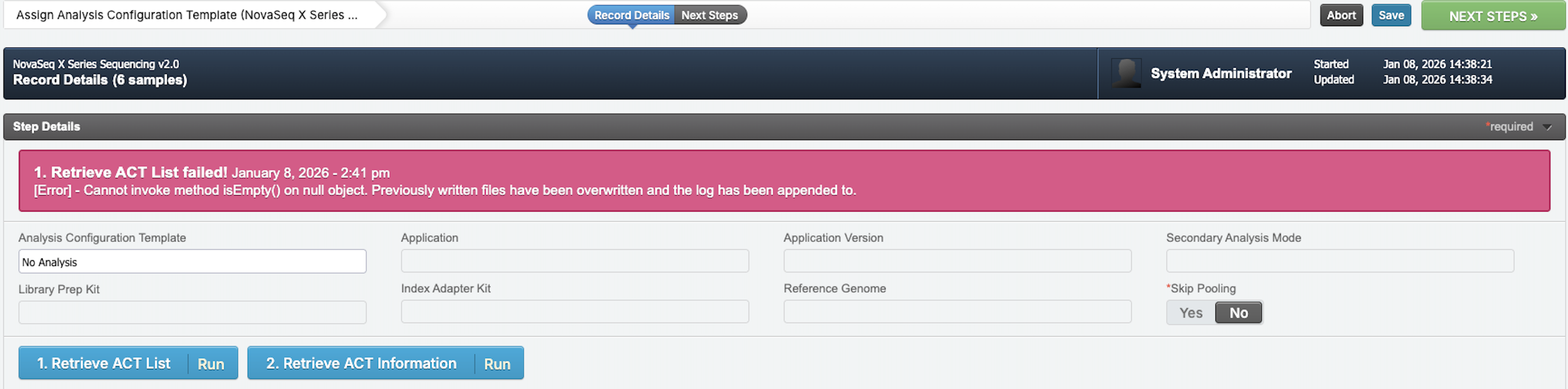
4. \[Optional] If planning a run with analysis, select **1. Retrieve ACT List** to retrieve the list of pre-configured ACTs available for selection.
> ℹ Select **No Analysis** if you do not want to include analysis in this run. The **No Analysis** option is selected as default. Note that when the run is configured with **No Analysis**, samples will be removed from the sequencing workflow upon completion of the AUTOMATED - Sequencing Run step.
5. \[Optional] If planning a run with analysis, select the applicable ACT to assign to the samples. The index adapter kit specified by the ACT must correspond to the label group used in [Library Prep Protocol](#library-prep-protocol).
6. \[Optional] In Step Details, select **2. Retrieve ACT Information** to trigger the Retrieve ACT Information automation.
This automation retrieves ACT information (e.g., Library Prep Kit, Index Adapter Kit, Reference Genome, and so on) and populates the fields in Clarity LIMS. These details are saved to the `ACTMetadata.csv` file that you can download. If you are not sure of the analysis configuration before starting the sequencing and analysis run, refer to the details in the file.
7. Set the **Skip Pooling** toggle switch to **Yes** if the input sample is one or more pools and no further pooling is required. Otherwise, leave it to the default value of **No**.
> ℹ By setting **Skip Pooling** toggle to **No**, input samples (one or more pools) can be further combined into a bigger pool in the subsequent Make Bulk Pool step.
8. Select **Next Steps** to assign the ACT to the samples.
This action triggers the Apply Selected ACT to Samples and Set Next Step automation. This automation:
* validates that `Molarity (nM)` custom field for each sample is greater than 0,
* validates that the indexes applied to the samples are valid for the selected ACT. If all are valid, set the `ACT Name` custom field for each sample to the selected ACT.
* sets the next step for each sample based on the logics below:
* If **Skip Pooling** is set to **Yes**, set next step to `Dilute and Denature` step.
* Otherwise, set next step to `Make Bulk Pool` step.
9. Select **Finish Step**. Samples are then routed according to the next step set above.
### Step 2: Make Bulk Pool (NovaSeq X Series Sequencing v2.0)
1. In Lab View, locate the NovaSeq X Series Sequencing v2.0 protocol. The samples are queued for the Make Bulk Pool (NovaSeq X Series Sequencing v2.0) step.
2. Add the samples to the Ice Bucket and select **View Ice Bucket**.
> ℹ If a PhiX control sample is required for the run, configure this in Step 3: Dilute and Denature using the **1–2% PhiX Spike-In** toggle switch.
3. On the Ice Bucket screen, select **Begin Work**.
4. Create a pool of samples as follows.
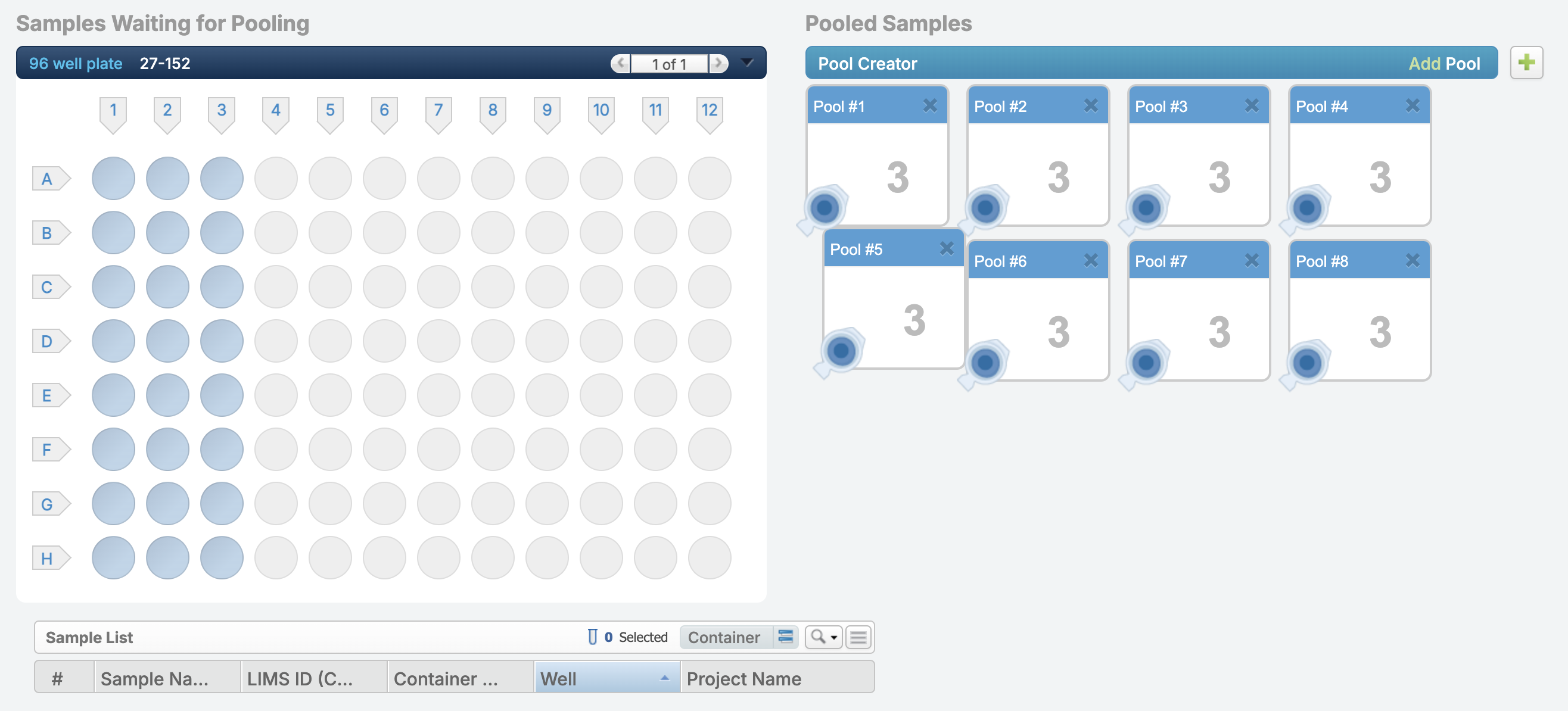
1. On the Pooling screen, create a pool by dragging samples into the Pool Creator.
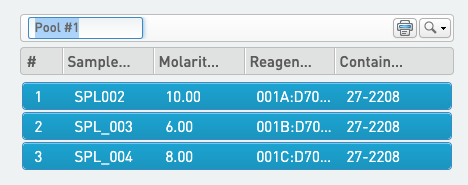
2. Enter a name for your pool or accept the default name (Pool #1).
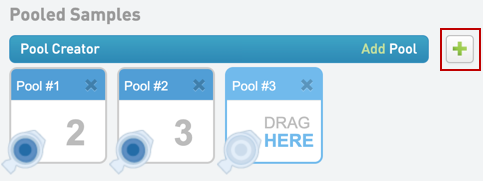
3. \[Optional] If multiple pools are required, select the plus sign (+) next to Pool Creator to create a pool.
4. \[Optional] To remove a pool, select the X in the top right corner of the pool.
5. Select **Record Details** to trigger the Validate Analysis Configurations automation.
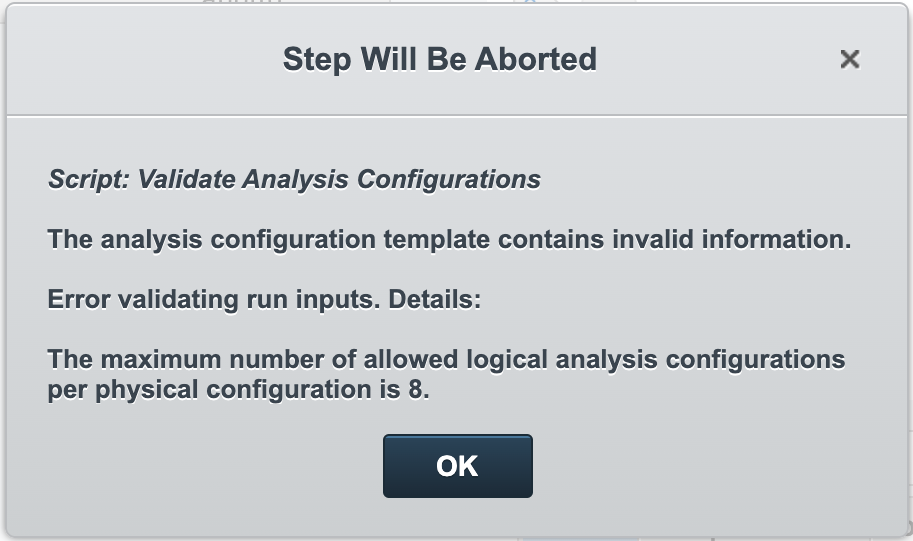
This automation performs the following checks on the analysis configuration for each pool (not applicable if **No Analysis** is configured in the prior Assign Analysis Configuration Template step):
* Pooled samples are within the maximum configuration limit.
* Pooled samples assigned with the same secondary analysis application must have the same analysis version (e.g. v3.8.4) and settings (e.g. Map/Align Output Format = CRAM).
6. On the Record Details screen, navigate to the Reagent Lot Tracking section to track the lot information used in the step.
* \[Optional] Create a new lot. For more information, refer to Add and Configure Reagent Kits and Lots in the [Clarity LIMS (Clarity & LabLink Reference Guide) documentation](/clarity-lims/clarity-and-lablink.md).
7. In the Step Details area, complete the following required fields:
* **Number of Lanes to Sequence** — Used in volume calculations, to make sure that the volumes are sufficient for the number of times the pool is sequenced. This field is applied to all pools in the step.
* **Final Loading Concentration (pM)** — The final loading concentration of the pool in the flow cell.
* **Minimum Per Sample Volume (ul)** — The minimum volume for each sample. This field is prepopulated with the configured default value (2 µl) and can be edited. If the per sample volume is below the value set in this field, the Calculate Volumes script applies a rounding factor to affected samples so that the volume reaches the minimum volume.
* **Flowcell Type** — The flow cell type that the run uses. This selection affects the computation of volumes in the Calculate Volumes automation that generates the calculation file. Select from the following options:
* 1.5B
* 5B
* 10B
* 25B
8. Select Calculate Volumes to trigger the Calculate Volumes automation.
This automation calculates the volumes required for each sample to form a pool that has the concentration and volume specified in the Step Details field. It also generates the calculation file in a CSV format and attaches it to the step. Select the file name to download it.
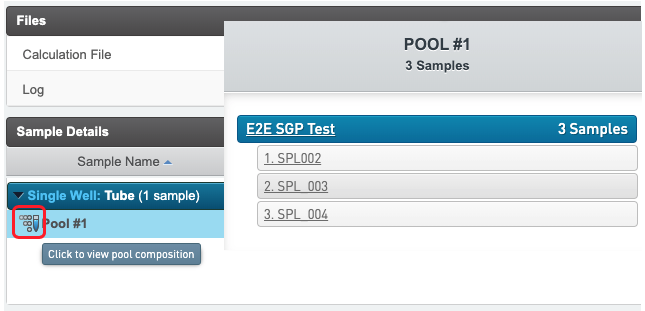
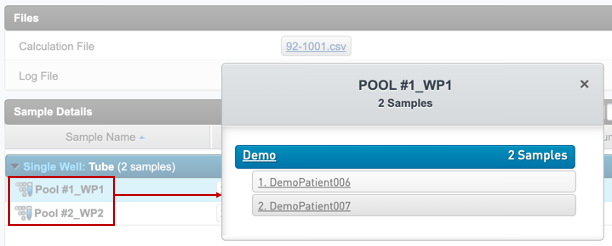
9. \[Optional] In the Sample Details table, select the pool next to the sample name to view details on the pool composition.
10. Select **Next Steps** to trigger the Set Next Step automation.
This automation sets the next step for samples to ADVANCE, which moves them to the Dilute and Denature (NovaSeq X Series Sequencing v2.0) step.
11. Select **Finish Step**.
### Step 3: Dilute and Denature (NovaSeq X Series Sequencing v2.0)
1. In Lab View, locate the NovaSeq X Series Sequencing v2.0 protocol. The pool of samples queued for the Dilute and Denature (NovaSeq X Series Sequencing v2.0) displays.
2. Add the pool to the Ice Bucket and select **View Ice Bucket**.
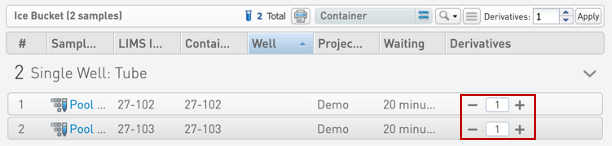
3. \[Optional] On the Ice Bucket screen, set the number of derivatives to create (placed into the library tube strip) and select **Begin Work**.
* On entry to the step, the Validate Inputs Flowcell Type automation is triggered. This automation makes sure that the configured flow cell type is valid.
4. On the Record Details screen, the Reagent Lot Tracking section tracks the NaOH, Resuspension Buffer, and TT2 reagents used in the step. Select from the active lots displayed in each drop-down list.
\[Optional] To add and activate reagent lots, refer to Add and Configure Reagent Kits and Lots in the [Clarity LIMS (Clarity & LabLink Reference Guide) documentation](/clarity-lims/clarity-and-lablink.md).
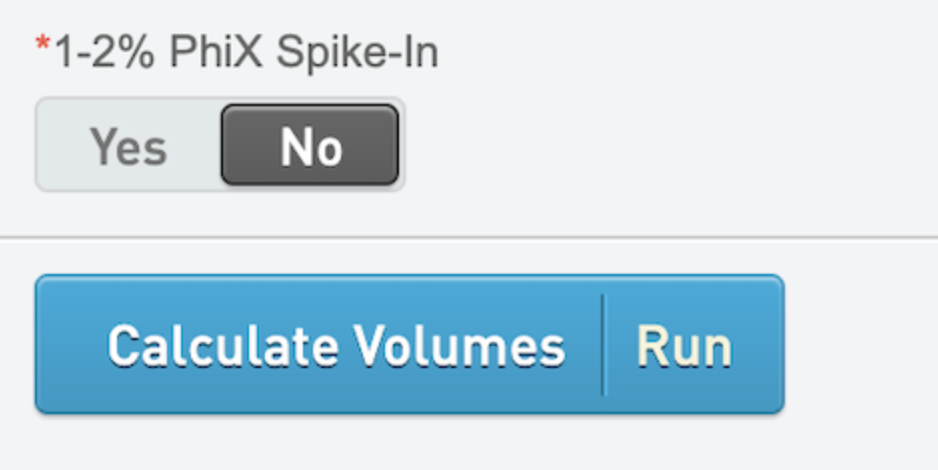
5. \[Optional] Set 1–2% PhiX Spike-In to Yes if PhiX is used for the run.
6. Select Calculate Volumes to trigger the Calculate Volume automation. This automation does the following
* Computes BP Aliquot Volume (ul), RSB Volume (ul), NaOH Volume (ul), and TT2 Volume (ul) and set these values in the Sample Details table.
* Sets PhiX Volume (ul) and Concentration (pM) (if there is a PhiX spike-in)
* Generates the calculation file (CSV) and attaches it to the step. This file contains information about the volume of RSB, NaOH, and TT2 to add per working pool. If there is a PhiX spike-in, the file also contains information on the PhiX volume and concentration.
7. \[Optional] In the Sample Details table, select the pool icon to view details of the working pool composition.
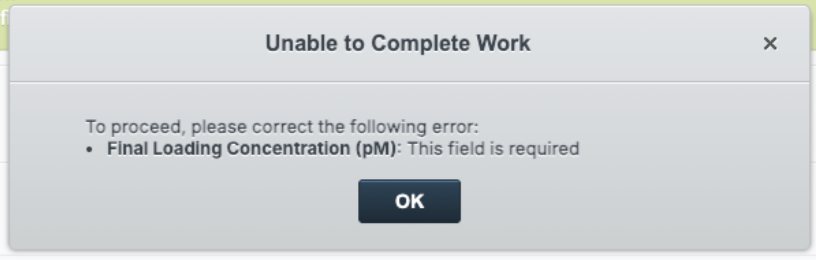
If 'Skip Pooling' is enabled in Assign Analysis Configuration Template Step, ensure that the required NovaSeqX Flowcell Type and Final Loading Concentration (pM) fields in the Sample Details table are updated before exiting the step. Missing out on these required fields will result in a blocking error message such as the one shown
8. Select **Next Steps**.
9. Select **Finish Step**.
### Step 4: Load to Library Tube Strip (NovaSeq X Series Sequencing v2.0)
1. In Lab View, locate the NovaSeq X Series Sequencing v2.0 protocol. The pool of samples are queued for the Load to Library Tube Strip (NovaSeq X Series Sequencing v2.0) step.
2. Add the pools to the Ice Bucket and select **View Ice Bucket**.
3. On the Ice Bucket screen, select one of the following destination container types:
* Library 8-tube Strip
* Library 2-tube Strip
4. Select **Begin Work** to trigger the Validate Flowcell Inputs and Analysis Configurations automation.
* The Validate Flowcell Inputs automation ensures that the correct container is selected for the flow cell type and that the number of inputs is the same as the number of available wells on the library tube strip.
>
* The Validate Analysis Configurations automation checks that analysis configuration for the run is within the maximum configuration limit.
5. On the Placement screen, do as follows.
1. Drag the pools into the Placed Samples area on the right.
2. Scan or type the barcode of the library tube strip into the container name field.
3. Select **Record Details**.
Upon exiting the Placement screen, the Validate Library Strip Tube Barcode automation makes sure that the library tube strip barcode conforms to the barcode mask.
* Library 8-tube Strip barcode mask: LC\[0-9]{7}-L\[A-Z]{1}1
* Library 2-tube Strip barcode mask: LC\[0-9]{7}-L\[A-Z]{1}2
6. The fields displayed on the Record Details screen are used to create the planned run and generate the sample sheet. Analysis-related configuration is retrieved from the ACT associated with the sample.
Refer to the following table for details.
*Fields Displayed on Record Details Screen of Load to Library Tube Strip (NovaSeq X Series Sequencing v2.0) Step*
| **Field** | **Description** |
| ------------------- | -------------------------------------------------------------------------------------------------------------------------------------------------------------------------------------------------- |
| Run Name | Enter the experiment name. Only alphanumeric characters, dashes, and underscores are permitted. No spaces. |
| Read 1 Cycles |
Presets
151
101
51
Accepts custom value
|
| Read 2 Cycles |
Presets
151
101
51
Accepts custom value
|
| Index 1 Cycles |
Presets
0
6
8
Accepts custom value¹
|
| Index 2 Cycles |
Presets
0
6
8
Accepts custom value¹
|
| BCL Convert Version |
Enter the BCL Convert Version to be used².
⚠ All the analysis applications configured for the run must be compatible with the specified BCL Convert Version.
|
| Create Planned Run |
Set this to True if a planned run should be created. Otherwise, only the sample sheet is generated. Default = True
|
¹ The custom value must correspond to the longest index sequence of the samples in the pools in the library tube strip. Otherwise, the planned run creation fails and an error message displays.
² Incompatible or empty BCL Convert Version field will trigger error messages in Clarity UI and in the log. Compatible versions are provided in the error messages. Resolve the error by specifying one of the compatible BCL Convert versions in the BCL Convert Version field.
7. Select **Validate Run Setup and Create Planned Run** to trigger the automation script. The script performs the following actions:
* Validates the parameters entered on the Record Details screen.
* Creates the planned run if **Create Planned Run** is `True`.
* Generates the sample sheet and attaches it to the placeholder in the Files area on the Record Details screen.
8. Select **Next Steps**.
On the Assign Next Steps screen, the next step for the pooled samples is set to the AUTOMATED - Sequencing Run (NovaSeq X Series Sequencing v2.0) step.
9. Select **Finish Step** to advance the pooled samples to the AUTOMATED - Sequencing Run (NovaSeq X Series Sequencing v2.0) step.
| **Flowcell Types** | **Compatible Container** | **No. of Pools Expected** |
| ------------------ | ------------------------ | ------------------------- |
| 1.5B | Library 2-tube Strip | 2 |
| 5B | Library 8-tube Strip | 8 |
| 10B | Library 8-tube Strip | 8 |
| 25B | Library 8-tube Strip | 8 |
For more information on how to start the sequencing run, refer to [NovaSeq X Series Sequencing v2.0 Configuration](/instruments-and-integrations/novaseq-x-series/novaseq-x-series-workflow-and-configuration/novaseq-x-series-workflow-and-configuration-v2.0/novaseq-x-series-sequencing-v2.0-configuration.md).
### Step 5: AUTOMATED - Sequencing Run (NovaSeq X Series Sequencing v2.0)
{% hint style="danger" %}
Do not add samples to the Ice Bucket or start or complete the AUTOMATED - Sequencing Run (NovaSeq X Series On-Prem Sequencing v1.0) step. The integration does this automatically.
{% endhint %}
The integration starts the step automatically and data from the run is parsed back into Clarity LIMS. User interaction is not required, but you can review the stages of the step in Clarity LIMS.
{% hint style="info" %}
When the run is configured with **No Analysis** during the Assign Analysis Configuration Template step, samples will be removed from the sequencing workflow upon completion of the AUTOMATED - Sequencing Run step. At this point, the entire NovaSeq X Series Integration workflow is fully validated.
{% endhint %}
#### Review Run Data
Read summary metrics are recorded for the library pool. After the run is complete, open the step and review these metrics in the Step Details section and the Sample Details table.
Step Details Section
The following values populate the master step fields:
* Run Name
* Run Status
* Output Folder
* Current Read
* Current Cycle
* Library Tube Barcode
* Flow Cell ID
* Flow Cell Side
* Flow Cell Type
* Flow Cell Part Number
* Flow Cell Lot Number
* Flow Cell Expiration Date
* Instrument ID
* Instrument Type
* Instrument Control Software Version
* Sequencing Log
Refer to [NovaSeq X Series Sequencing v2.0 Configuration](/instruments-and-integrations/novaseq-x-series/novaseq-x-series-workflow-and-configuration/novaseq-x-series-workflow-and-configuration-v2.0/novaseq-x-series-sequencing-v2.0-configuration.md#master-step-fields) for details of each field.
Sample Details Table
Summary metrics (per run and per lane) populate the following global container custom fields:
* % Bases >=Q30 R1
* % Bases >=Q30 R2
* % Error Rate R1
* % Error Rate R2
* Yield (Gb) R1
* Yield (Gb) R2
* Reads PF
* % PF
* % Aligned R1
* % Aligned R2
* % Occupied
* % Phasing R1
* % Phasing R2
* % Prephasing R1
* % Prephasing R2
* Intensity Cycle 1 R1
* Intensity Cycle 1 R2
### Step 6: AUTOMATED - Analysis Run (NovaSeq X Series Sequencing v2.0)
{% hint style="danger" %}
Do not add samples to the Ice Bucket or start or complete the AUTOMATED - Analysis Run (NovaSeq X Series Sequencing v2.0) step. The integration does this automatically.
{% endhint %}
The integration starts the step automatically and data from the run is parsed back into Clarity LIMS. User interaction is not required, but you can review the stages of the step in Clarity LIMS. If the run analysis tracking is successful, the integration completes the step automatically.
#### Review Analysis Data
After the analysis run is complete, open the step and review the following values in the Step Details section:
* Analysis Status - Status of the analysis run
* Analysis Result Location - Location of the secondary analysis data. This field is empty if if transfer of secondary analysis data to an external location is disabled.
* Log - Log message when integration handling the event from IRM
File placeholders:
* Demultiplexing results file - demultiplexing statistics for each sample
* Analysis results summary files - summary of analysis workflow performed and number of samples analyzed
At this point, the entire NovaSeq X Series Integration workflow is fully validated.
## How To
### Configure a Run with Multiple Analysis Applications
1. \[Optional] [Create the required Analysis Configuration Templates (ACTs) in BaseSpace Sequence Hub](#optional-analysis-configuration-template-creation-in-basespace-sequence-hub), if these ACTs do not exist.
2. For each ACT, repeat [Step 1: Assign Analysis Configuration Template](#step-1-assign-analysis-configuration-template-novaseq-x-series-sequencing-v20).
3. Proceed with the remaining steps in the workflow. Note that in Step 2: Make Bulk Pool, pools with different ACTs can be combined as required provided that they are [compatible and within the configuration limits](#error-when-creating-planned-runs).
## Troubleshooting
If an automation trigger does not appear to run its corresponding scripts, refer to the Troubleshooting Automation section in the [Clarity LIMS (API & Database) documentation](https://github.com/illumina-swi/clarity-int-docs/tree/main/docs/int/api-and-database/api-docs/README.md).
### Validate Analysis Configuration Automation Check Fails
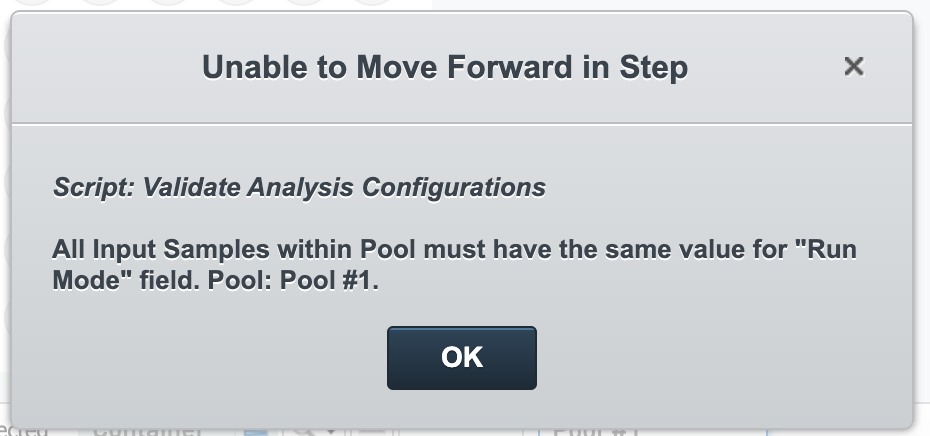
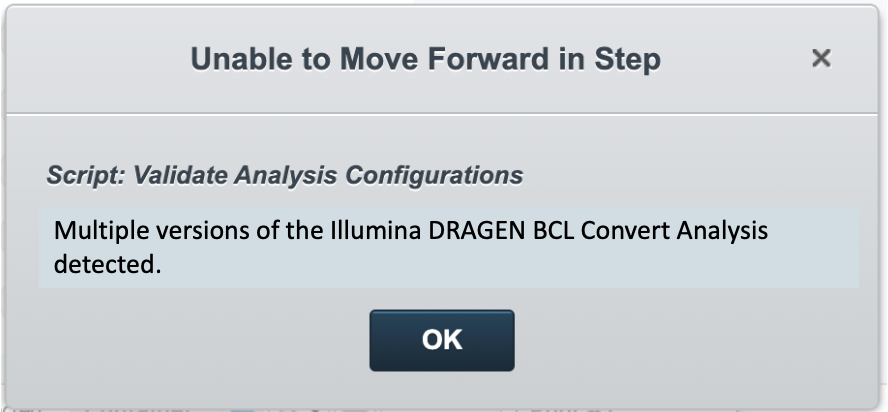
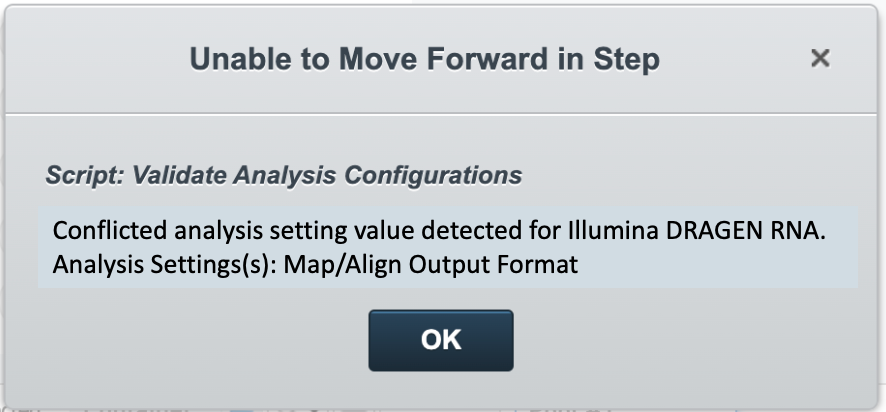
The Validate Analysis Configuration automation check is in the Make Bulk Pool (upon pooling) and Load to Library Tube Strip (upon step entry) steps. If a failure happens, an error message displays and the step can be aborted, or you might be prevented from continuing the step. Refer to [Set Up Secondary Analysis in NovaSeq X Series documentation](https://support-docs.illumina.com/IN/NovaSeqX/Content/IN/NovaSeqX/SecondaryAnalysisSetup.htm) for limits of the number of analysis application and reference genome combinations supported.
This check can fail for the following reasons:
* The analysis configuration after library pooling or during the planned run creation exceeds the configuration limit.
Resolve this error as follows.
* If the error occurs on the Make Bulk Pool step, reduce the number of analysis configurations for a pool. To reduce the number, reorganize the samples for the pooling step (eg, by pooling samples that have similar configurations together).
* If the error occurs on the Load to Library Tube step, reduce the number of analysis configurations for the planned run by reorganizing the samples for multiple runs instead of a single run.
* ACTs of samples in the same pool or planned run must have the same run mode (Local).
Resolve this error as follows.
1. Abort the step and remove samples with ACTs that have conflicting run modes from the Ice Bucket.
2. Make sure that all remaining samples in the Ice Bucket have ACTs with the same run modes.
3. Select **Begin Work** to continue the step.
* Pooled samples assigned with the same secondary analysis application must have the same analysis version (e.g. v3.8.4) and settings (e.g. Map/Align Output Format = CRAM).
Resolve this error as follows.
* If the error occurs on the Make Bulk Pool step, pool the samples again. Make sure that samples with the same secondary analysis, but conflicting analysis versions or analysis settings, are in different pools.
* If the error occurs on the Load to Library Tube step, reorganize the samples for the planned run. Make sure that samples with the same secondary analysis, but conflicting analysis versions or analysis settings, are in different runs.
### Error When Creating Planned Runs
If you receive an error when creating a planned run, check the log message in the Load to Library Tube Strip step to identify the issue. If you cannot correct the issue, contact Illumina Support.
**Incompatible Analyses in a Planned Run**
Only compatible analysis versions should be combined in a single planned run. When incompatible analysis versions are combined, an error log message displays. An example of the error log message is shown below.
To resolve this error, check the ACTs that were used for the run and only select the ACTs that are compatible with the planned run.
### Automated Step Does Not Start
If the AUTOMATED - Sequencing Run (NovaSeq X Series On-Prem Sequencing v2.0) step does not start, Clarity LIMS is likely not receiving sequencing run events from Illumina Run Manager correctly.
The instrument must be reflected as Connected and Active in the Illumina Run Manager Integration UI. Reconnect the instrument if the status reflects otherwise.
If the issues remain, contact Illumina Support.
### Automated Step Starts, But Does Not Complete
If the AUTOMATED - Sequencing Run (NovaSeq X Series On-Prem Sequencing v2.0) step starts, but does not complete, do as follows.
1. Log in to the default user account and use one of the following methods to open the in progress step in Clarity LIMS:
1. In Lab View, find the step in the Recent Activities pane.
2. Search for the step in Clarity LIMS using the library tube strip barcode as the search term.
2. On the Record Details screen, the Sequencing Log multiline text field contains logging information.
If unable to reach the Record Details screen, or if the Sequencing Log field does not contain enough information to resolve the issue, contact Illumina Support. Provide the relevant information from the troubleshooting steps already performed.
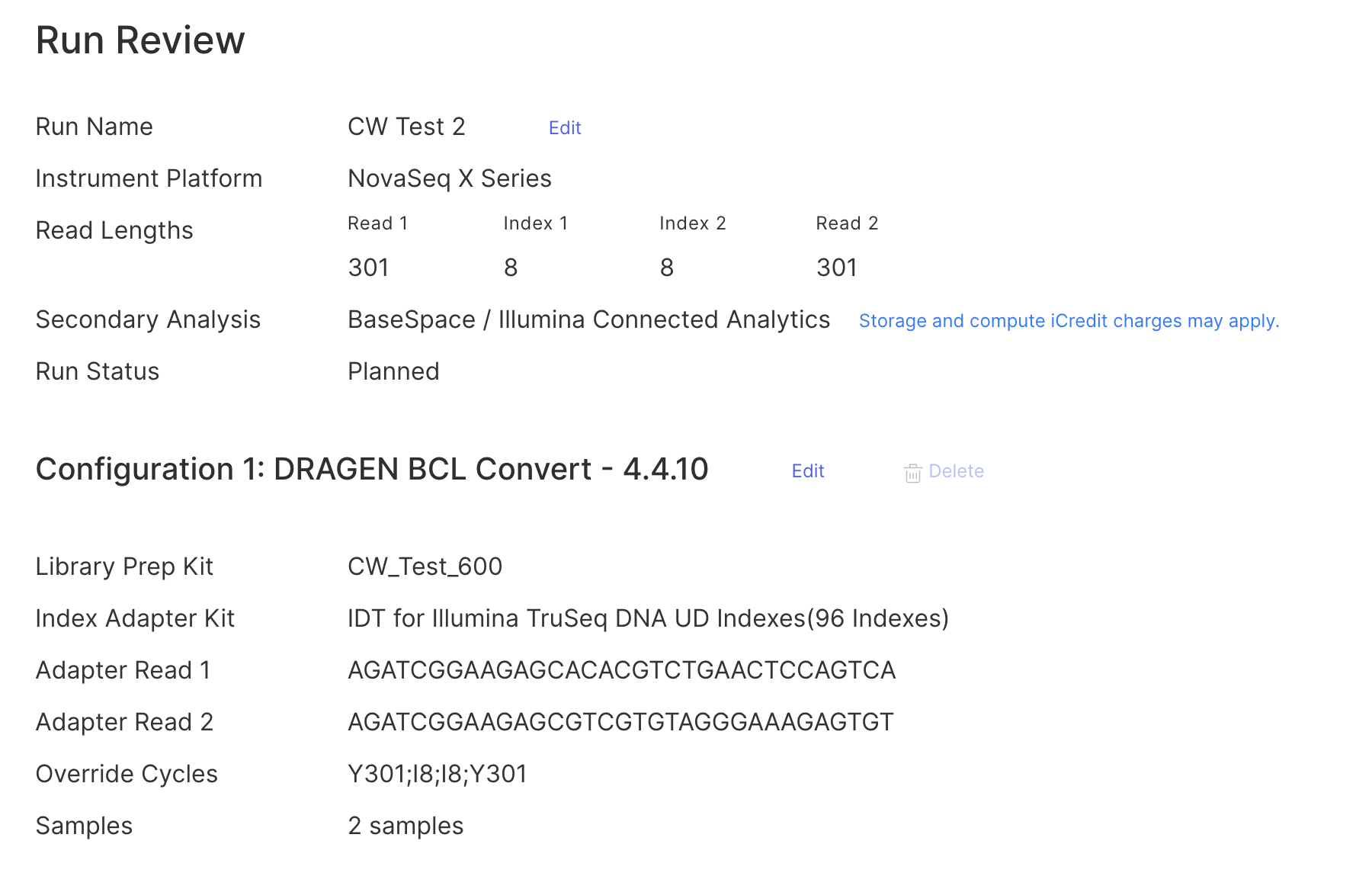
### Values in Override Cycles is different from Read Lengths in the Run Review page
* The override cycles will shows 151 cycles instead of 301 cycles for Read 1 and Read 2 when choosing TruSeq PCR-Free kit and TruSeq Nano Library Prep Kit with 1.5B flowcell with 600 cycle kit.
Resolve this error as follows.
1. Create a custom library prep kit for TruSeq PCR-Free kit or TruSeq Nano Library Prep Kit on Illumina Run Manager entering 301 for Read 1 Cycles and Read 2 Cycles. For instructions, refer to the BaseSpace Sequence Hub Online Help Center [Set Up a Custom Library Prep Kit](https://sapac.support.illumina.com/help/BaseSpace_Sequence_Hub_OLH_009008_2/Source/Informatics/BS/SetUpCustomKit_swBS.htm)
2. Create a new ACT using the custom library prep kit created in Step 1.
3. After planned run is created, the override cycles and read cycles should reflect the same number as below.
---
# Agent Instructions
This documentation is published with GitBook. GitBook is the documentation platform designed so that both humans and AI agents can read, navigate, and reason over technical content effectively. Learn more at gitbook.com.
## Querying This Documentation
If you need additional information that is not directly available in this page, you can query the documentation dynamically by asking a question.
Perform an HTTP GET request on the current page URL with the `ask` query parameter, and the optional `goal` query parameter:
```
GET https://help.claritylims.illumina.com/instruments-and-integrations/novaseq-x-series/novaseqx-onprem/novaseqx-onprem-v1.1.0-release-notes/novaseqx-onprem-v1.1.0-user-interaction-validation-and-troubleshooting.md?ask=&goal=
```
`ask` is the immediate question: it should be specific, self-contained, and written in natural language.
`goal` is optional and describes the broader end goal you are ultimately trying to accomplish on behalf of the user. GitBook uses it to tailor the answer towards what is most useful for that goal.
The response will contain a direct answer to the question and relevant excerpts and sources from the documentation.
Use this mechanism when the answer is not explicitly present in the current page, you need clarification or additional context, or you want to retrieve related documentation sections.